Laptops run our work, study, and downtime—but one screen fills up fast once you're juggling browser tabs, spreadsheets, and a video call all at once. That's exactly why dual-monitor setups have shifted from a nice-to-have to a standard for productivity, creative work, and gaming alike.
The simplest path to that wider workspace is a laptop docking station. The right one lets you drive two or more external displays from a single USB-C or Thunderbolt connection, while consolidating all your other peripherals at the same time. Below we cut through the spec-sheet noise and match four PURPLELEC docking stations to real-world needs.
What Is a Docking Station?
A docking station expands a laptop's limited port selection into a full desktop hub. Rather than threading several cables into your machine every morning, you make one connection to a USB-C or Thunderbolt port on the docking station, and it fans that out into HDMI, DisplayPort, USB-A, USB-C, Ethernet, card slots, audio jacks, and more.
For anyone running two screens, the headline benefit is straightforward: video output to multiple monitors at once, turning a compact laptop into a roomy, flexible workstation.
Before you buy, run through these five questions—your answers will narrow the field quickly:
1. Laptop compatibility – Does your machine offer USB-C with DP Alt Mode, or a Thunderbolt port?
2. Operating system – Windows (Dell, HP, Lenovo, Asus, and so on) or macOS?
3. Display goals – Dual 4K, a single 8K panel, or standard Full HD?
4. Extra capabilities – Do you need Ethernet, a card reader, onboard SSD storage, or more USB ports?
5. Portable vs. desktop – A pocketable travel hub, or a fully loaded desk anchor?
How to Connect Dual Monitors to a Docking Station
On Windows (Dell, HP, Lenovo, Asus, etc.):
1. Confirm video support – Make sure your laptop can output video over USB-C DP Alt Mode or Thunderbolt.
2. Match the ports – Line up the docking station's outputs (HDMI / DisplayPort / USB-C) with your monitors' inputs.
3. Connect and configure – Plug the docking station into your laptop, attach both monitors, then open Settings → Display → Multiple displays → Extend these displays.
If the second screen doesn't appear, hit Detect in Display settings or reboot the laptop.
On macOS:
Macs with Thunderbolt and Apple Silicon Pro/Max chips (or Intel Macs) can drive multiple external displays natively. Note that base-tier Apple Silicon chips (such as the standard M1/M2) are limited to a single external display over their video pipeline regardless of the docking station, so check your specific model's native display ceiling before counting on a second screen.
1. PURPLELEC CM073 — 10-in-1 USB-C Hub with SSD Enclosure (Portable Storage Pick)
If portable storage matters as much as screen real estate, the CM073 is the standout. It packs ten ports into a pocket-size shell and adds a built-in M.2 SSD enclosure that expands local storage up to 8TB.
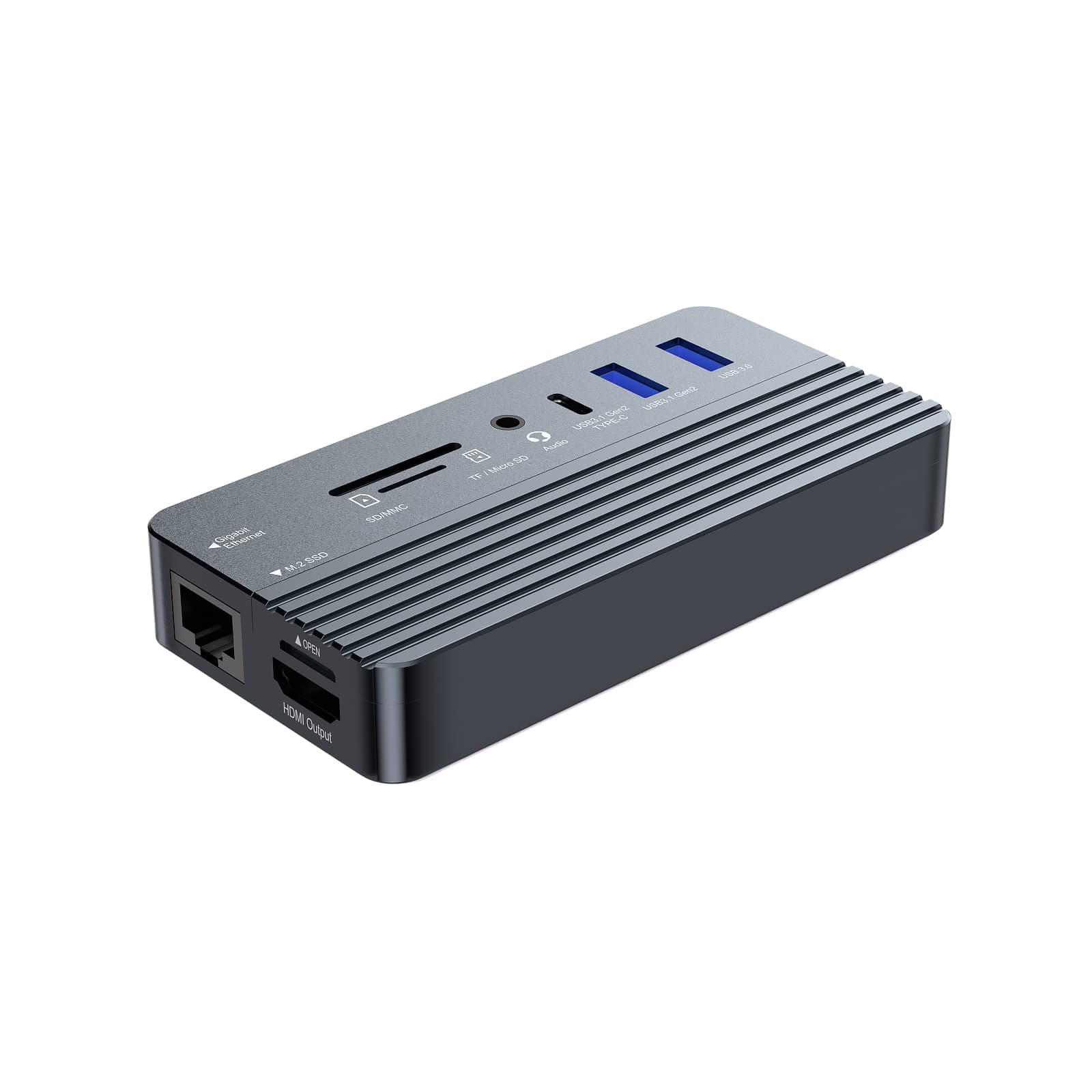
• Data: USB-C 3.1 (10Gbps), USB-A 3.1 Gen2 (10Gbps), USB-A 3.0 (5Gbps), SD/TF
• Video: Single HDMI output up to 4K@60Hz (mirror or extend one external screen)
• Power: 100W PD input, up to 80W passed to the host
• Build: Aluminum corrugated shell with thermal pad for heat dissipation, under 5.1 oz, tool-free SSD swaps
Best for: Mobile users who want a massive, swappable storage drive plus one crisp 4K screen in something they can carry anywhere. (Single-display only—pair it with a multi-output model below if you need two external monitors.)
2. PURPLELEC DS015 — USB-C Docking Station (100W PD, Dual Display)
The everyday dual-monitor anchor. The DS015 pushes an HDMI output and a DisplayPort output at up to 4K@60Hz each, so you get a genuine two-screen desktop over a single USB-C cable. Windows supports both MST and SST extension modes; macOS runs in SST.
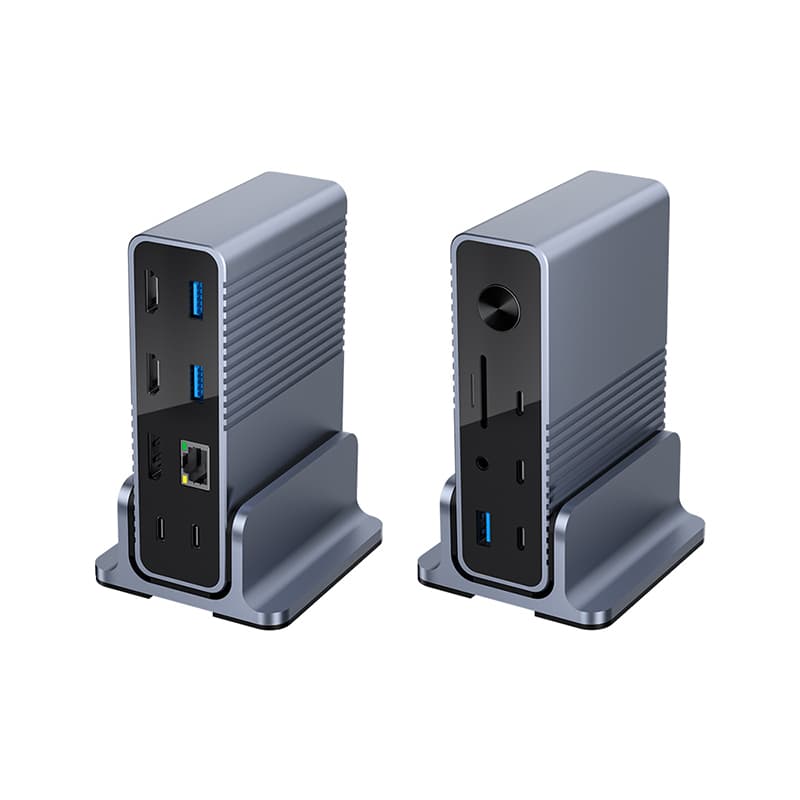
• Video: HDMI 4K@60Hz + DisplayPort 4K@60Hz (dual external displays)
• Power: PD 3.0 100W input, roughly 80W to the laptop
• Data & network: 3× USB-A 5Gbps, 3× USB-C 10Gbps, SD 3.0 (up to 104MB/s), Gigabit Ethernet, 3.5mm audio/mic combo
• Compatibility: Windows, macOS, and Linux
Best for: Office and hybrid workers who want a clean dual-4K desk and full connectivity without Thunderbolt-tier pricing.
3. PURPLELEC DS019B — 16-in-1 Thunderbolt 5 Docking Station (Bandwidth Powerhouse)
When uncompressed 8K footage and fast NVMe arrays are part of the job, the DS019B's 120Gbps Thunderbolt 5 upstream link clears the congestion. Its 16 ports include four Thunderbolt 5 and seven USB ports for standardized one-cable workstation deployment.
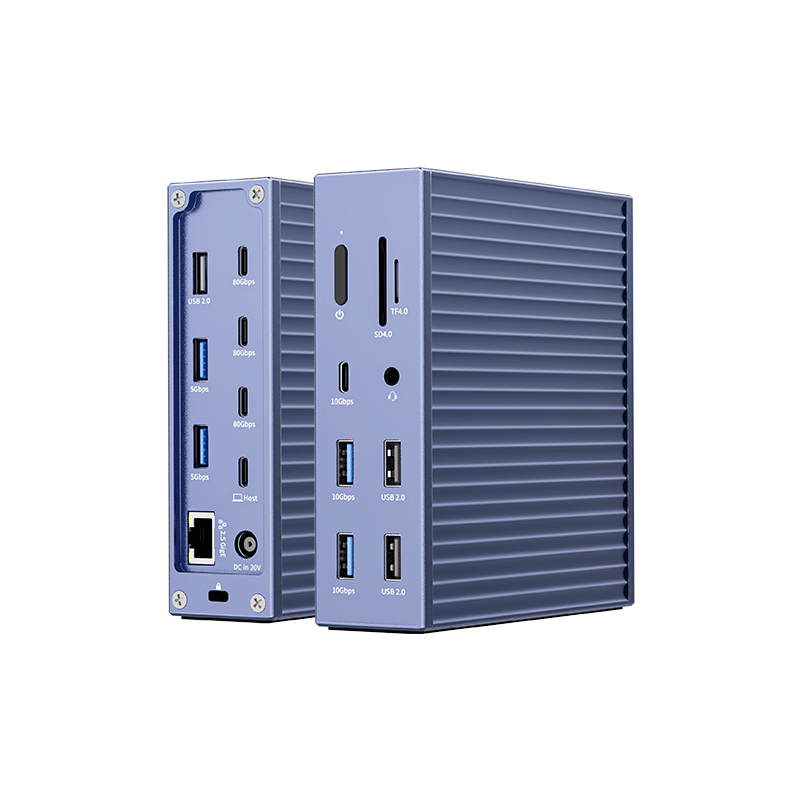
• Video: Single 8K@60Hz, dual 8K, or triple 4K@60Hz via downstream TBT5 ports (DP Alt Mode 2.1)
• Bandwidth: 120Gbps Thunderbolt 5 upstream
• Power: 240W DC input, up to 140W PD to the host (PD 3.1), plus a front USB-C port with 20W fast charging
• Connectivity: 4× Thunderbolt 5, 7× USB, 2.5G Ethernet, SD/TF 4.0, 3.5mm audio
• Build: Industrial-grade aluminum alloy
Best for: DIT workflows, financial trading desks, and IT architects who need triple displays plus rock-solid bandwidth and power.
4. PURPLELEC TB9001 — 14-in-1 Thunderbolt 5 Docking Station with Built-in NVMe (Creative Workstation Pick)
Built for post-production and design teams, the TB9001 combines an 80Gbps Thunderbolt 5 link with onboard NVMe storage, so editing scratch space and docking live in one chassis.
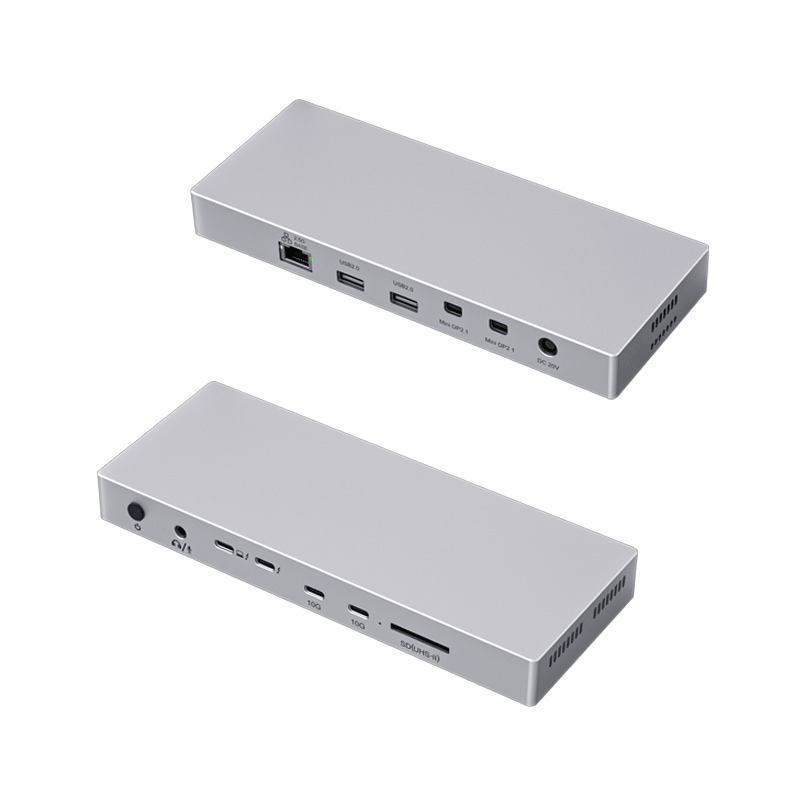
• Video: 1× Thunderbolt 5 + 2× Mini DisplayPort, each up to 7680×4320@60Hz (triple 8K)
• Bandwidth: 80Gbps Thunderbolt 5 upstream
• Storage: Built-in M.2 slot (2280 NVMe, M Key & B&M Key) running over the 80Gbps channel
• Connectivity: 2.5GbE, SD 4.0 (312MB/s), USB 3.2 Gen2, USB 2.0, 3.5mm audio, dedicated 20V/8.5A DC input
• Build: Rugged aluminum enclosure
Best for: Video editors and 3D designers running real-time 8K timelines and multi-screen color grading, plus enterprise meeting rooms needing single-cable presentations.
Frequently Asked Questions
Q: Can I use a docking station if my laptop only has USB-A?
A: Most modern docking stations require USB-C with DP Alt Mode or Thunderbolt for video. A USB-A-only laptop can use simpler USB hubs, but for dual external displays you'll generally need a USB-C/Thunderbolt host port.
Q: Will a base Apple Silicon MacBook Air support two extended monitors?
A: Base M-series chips natively output to a single external display. Check your exact chip's display limit, or look at a DisplayLink-based solution if you need a true second extended screen.
Q: What's the difference between a USB-C hub and a docking station?
A: A hub is usually compact and bus-powered for light expansion; a docking station adds more ports, higher power delivery, and stronger multi-display support for a desktop-grade setup.
Q: Do I need drivers?
A: Native USB-C/Thunderbolt docking stations are typically plug-and-play. DisplayLink models do require a driver install.
Q: Why isn't my second monitor working?
A: Confirm your laptop supports the needed display count, reseat cables, click Detect in display settings, and update your graphics drivers.
Final Thoughts
Whether you're on Windows or macOS, the right docking station turns a thin laptop into a desktop-class command center. From the pocketable CM073 to the Thunderbolt 5 firepower of the DS019B and TB9001, PURPLELEC's lineup covers everything from portable storage to multi-8K creative workstations. Match the model to how you actually work, and your dual-monitor setup will simply click into place.









